
Akoto Shule

Akoto Shule

School Management System

Recommended

Install the app

Gets you notifications with a count on the app icon, a home-screen icon, and full offline use.

On Android (Chrome):

  1. Open akotoshule.link in Chrome.
  2. Tap the menu → Install app (or Add to Home screen).
  3. Open the new Akoto Shule icon, then turn on notifications when it offers.

On iPhone (Safari):

Open akotoshule.link → the Share menu → Add to Home Screen. Open it from the new icon to enable notifications.

Which browser?
  • Chrome (Android) or Safari (iPhone) — full experience, notification count on the icon.
  • Samsung Internet — also works well.
  • Brave — works, but first turn on Settings → Privacy → Use Google services for push messaging.
  • Firefox or the phone’s built-in browser — notifications may not arrive or won’t badge the icon; use Chrome instead.
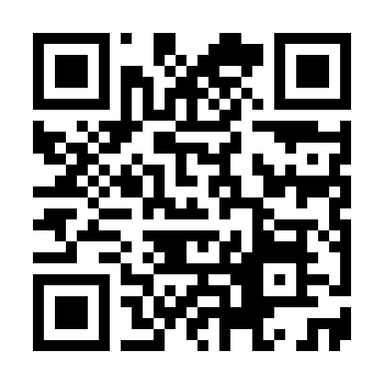
Scan to open akotoshule.link/download

Scan with a phone camera to open this page

Prefer a file? Download the APK

An installable file for phones that can’t use Install appabove. Note: this version can’t show the notification count on its icon — use Install app for that.

Download APK

Android APK · ~1.8 MB · v1.1

  1. Open the downloaded file. If asked, allow installs from this source.
  2. Android may say “App scan recommended” — tap Scan app, then Install.

About that security prompt: it appears because the app is installed from our website rather than the Play Store — not because anything is wrong with it. Choosing Scan applets Google check it and continue. Do not choose “Don’t install”.

Or just open it in your browser →